How to Connect Your Etsy Store to Our Fulfillment System
How to Connect Your Etsy Store to Our Fulfillment System
Want to connect your Etsy store with our fulfillment system?
No problem — we support automatic Etsy order fulfillment through LitCommerce + Shopify integration.
Before getting started, you only need to prepare a few things 👇
✅ What You Need to Prepare
1. Shopify Admin Account(Even the basic Shopify plan works)
2. Etsy Seller Account
3. LitCommerce App
✅How can we link our system to your Shopify store?
Step 1: Set up the Main Store and first Channel
Setup Main Store
Choose the Main Store by clicking the connect button under the desired eCommerce platform.
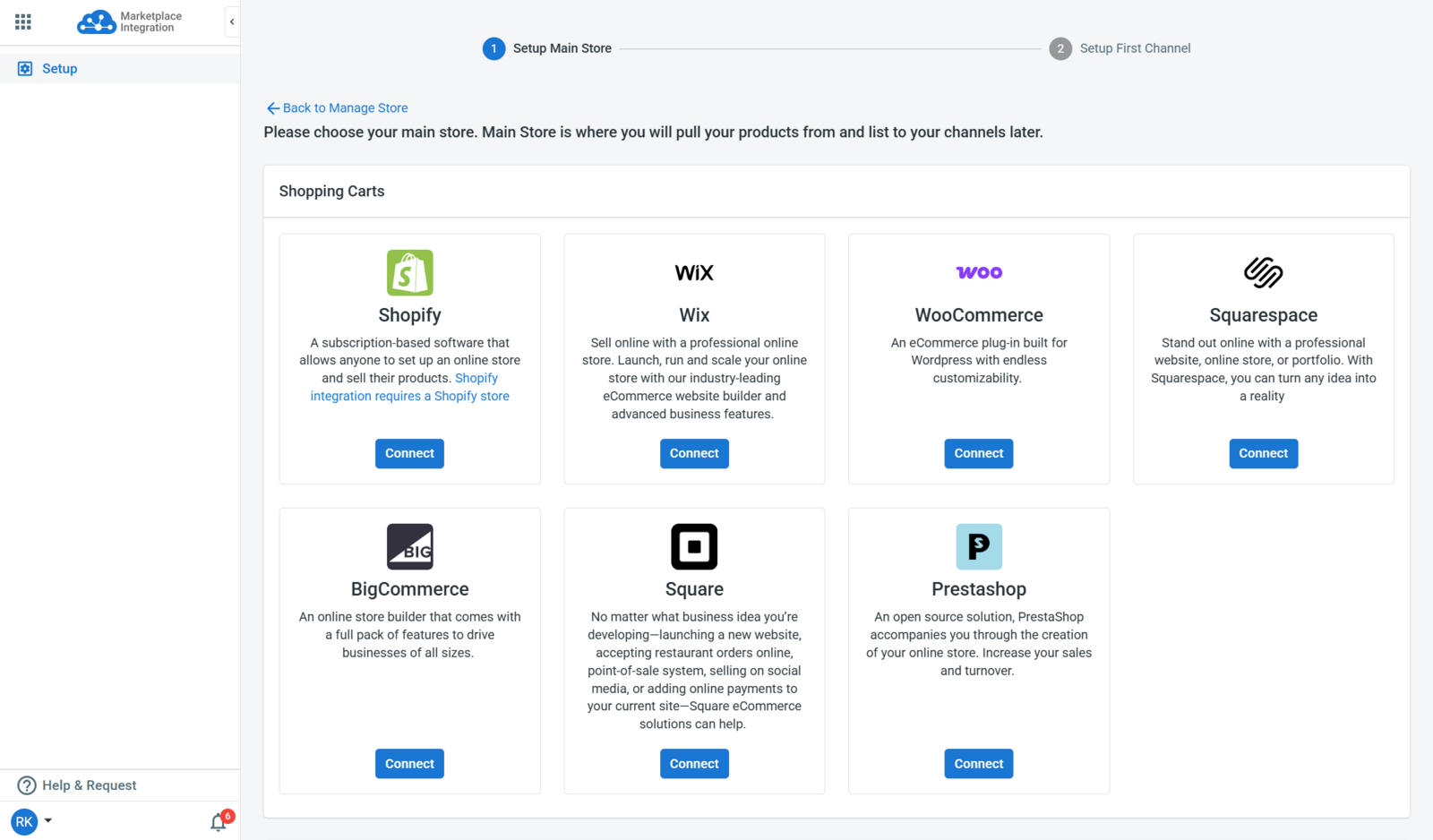
After that, our application will display instructions on how to connect to the corresponding platform. Be sure to follow them carefully.
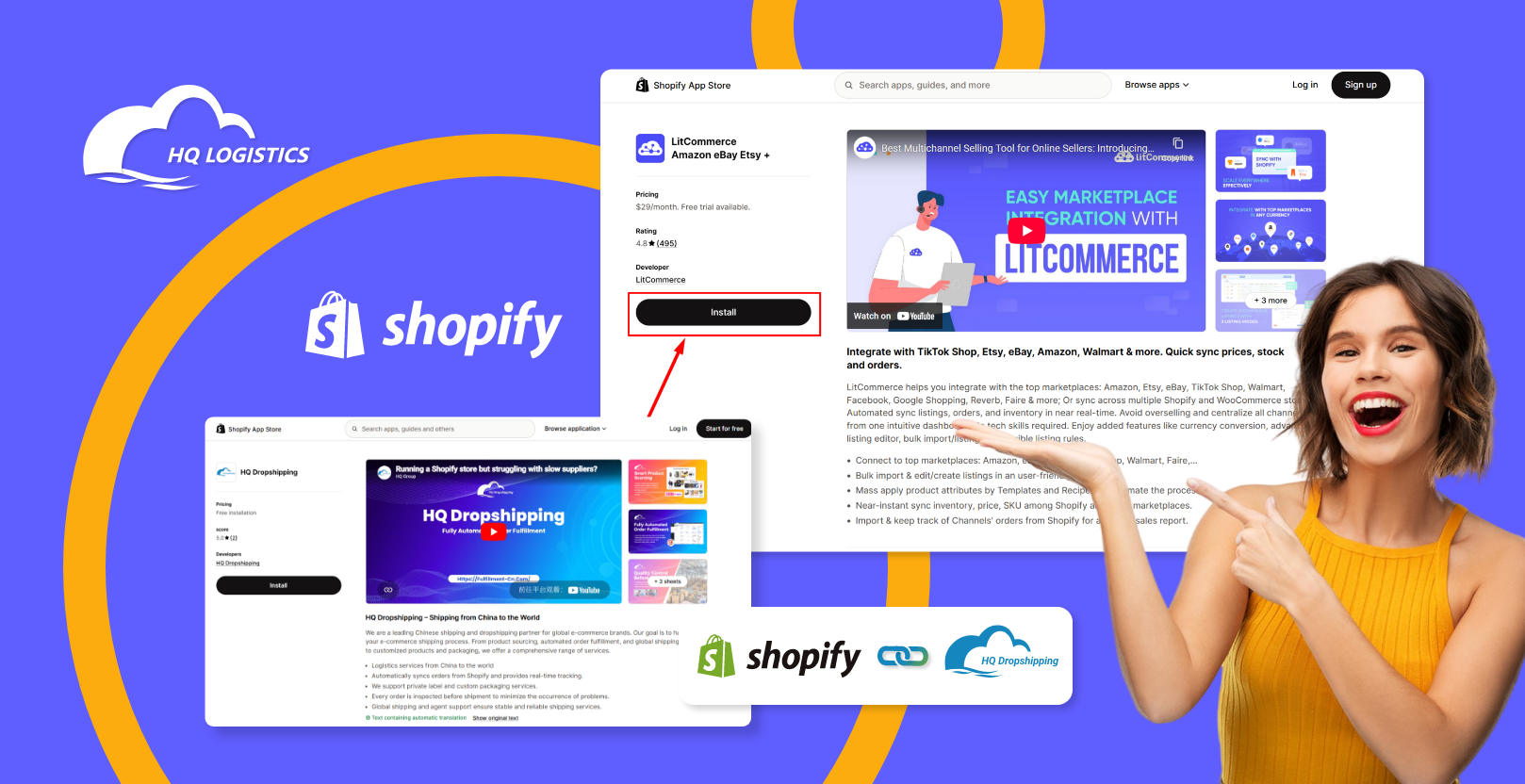
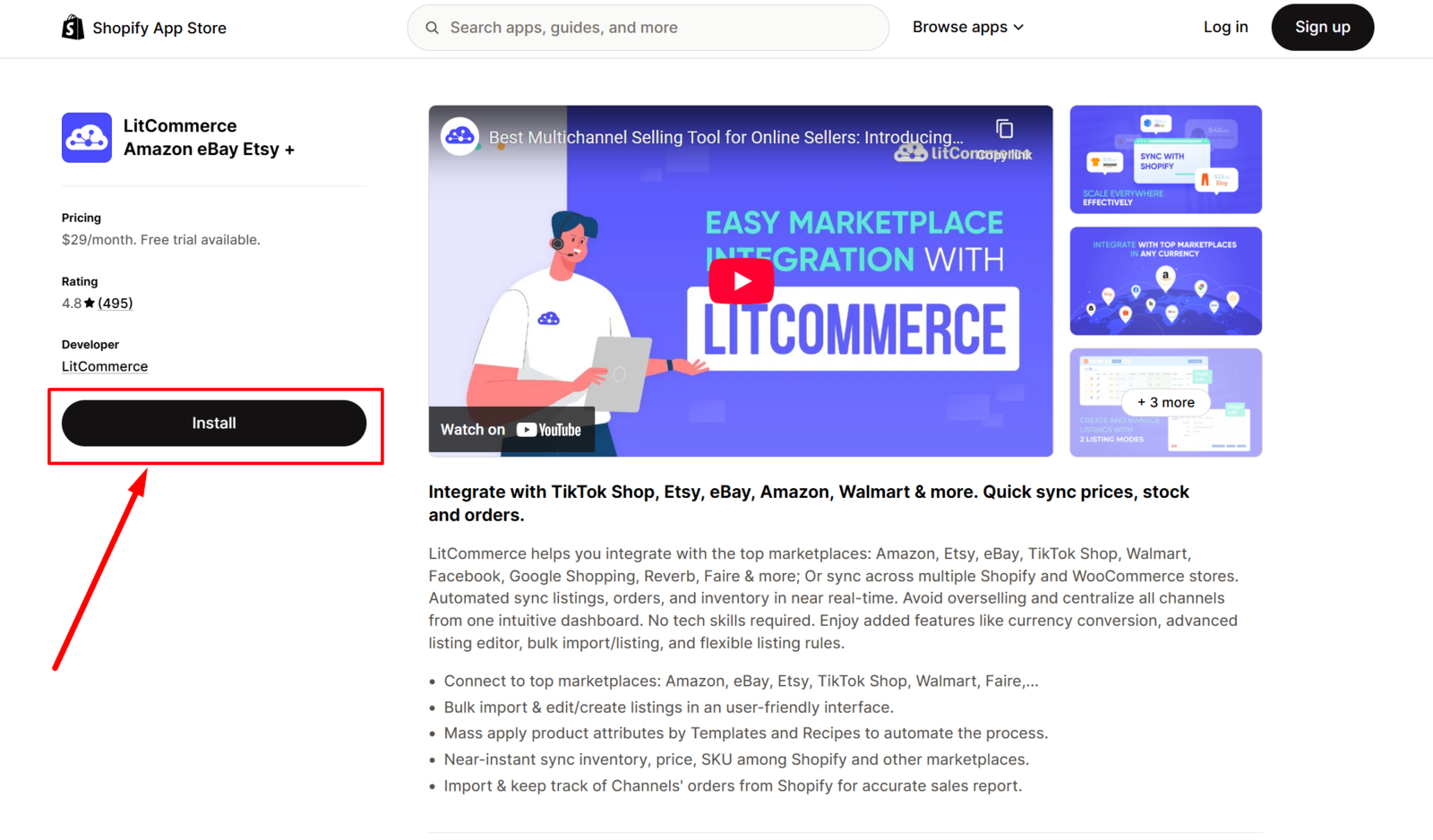
Alternatively, you can find and install the LitCommerce app or plugin from eCommerce app stores. Once installed, you'll be redirected to the LitCommerce dashboard to proceed with further steps.
Step 2: List or import Products in the Sales Channel
Each Listing on your Sale Channels must be linked to a matching Product in the All Products tab. Once the Channel Settings are set up, the LitCommerce system can update price, quantity, and other product information for linked listing accurately.
Step 1: Add Draft Listings from the All Products tab to the Sales Channel.
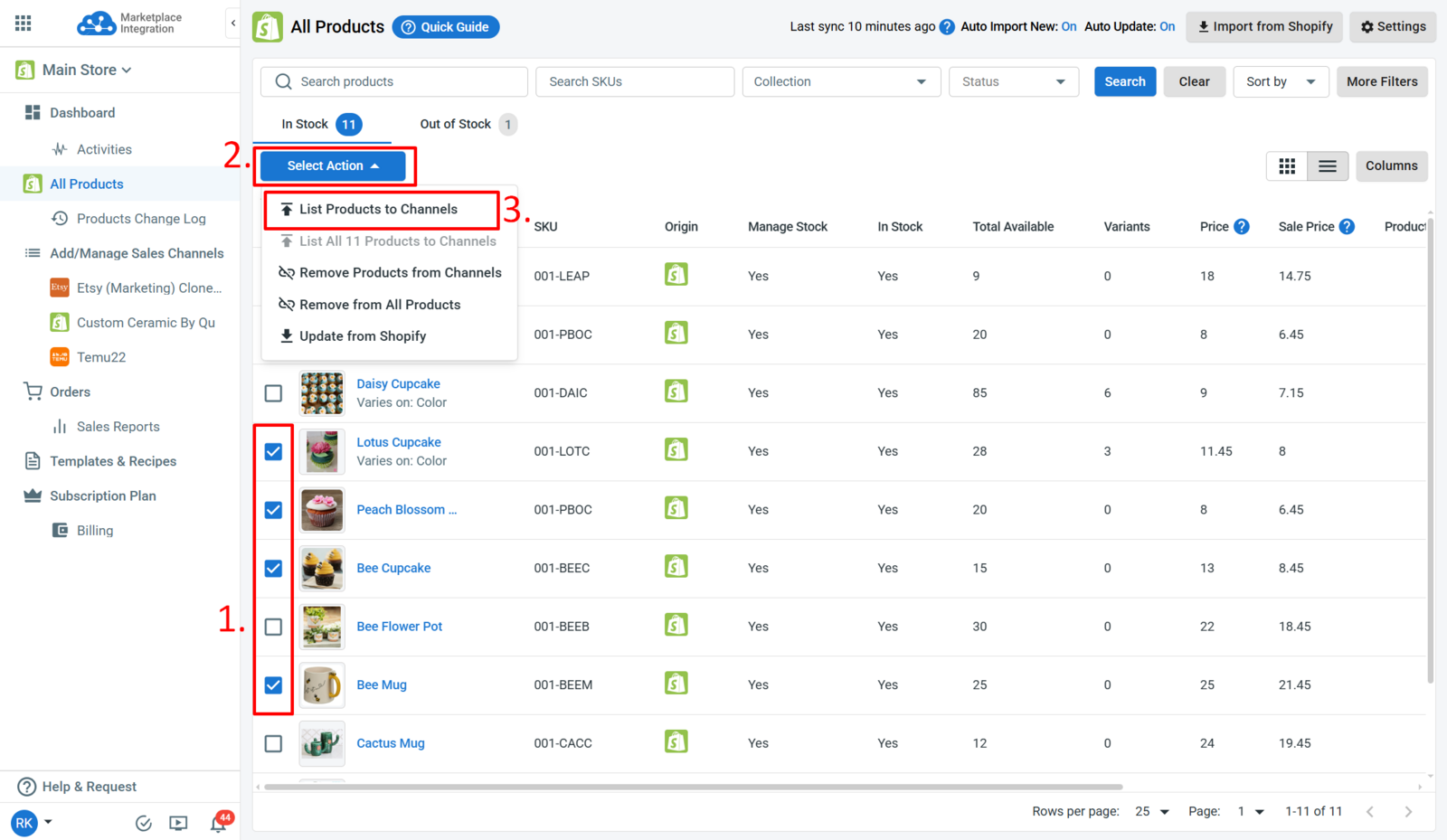
First of all, you will need to add a draft listing to the sales channel in LitCommerce. To begin, go to the All Products tab on the side-bar menu.
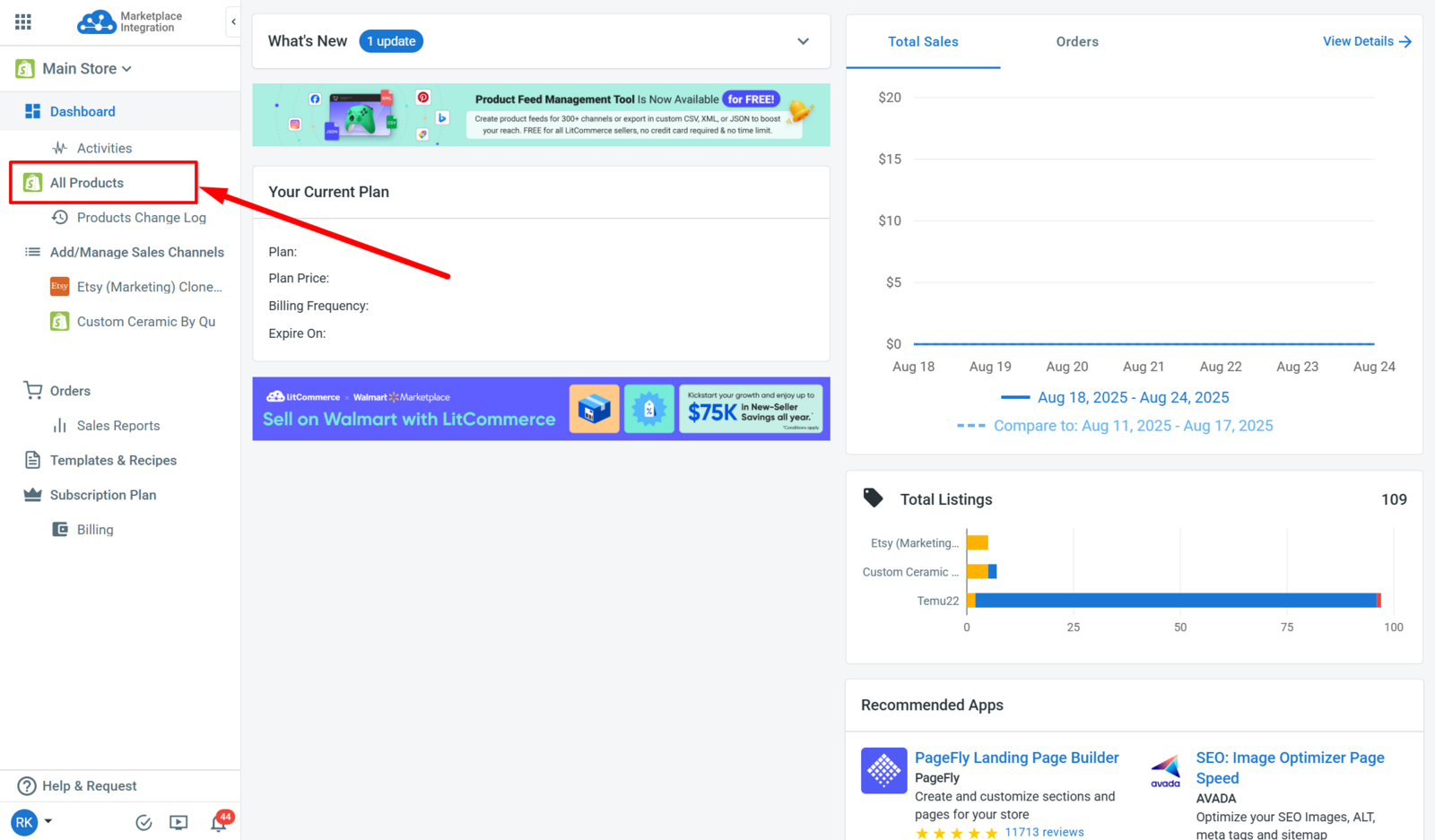
After that, choose the Products that you want to list and then select the action List Product to Channels.
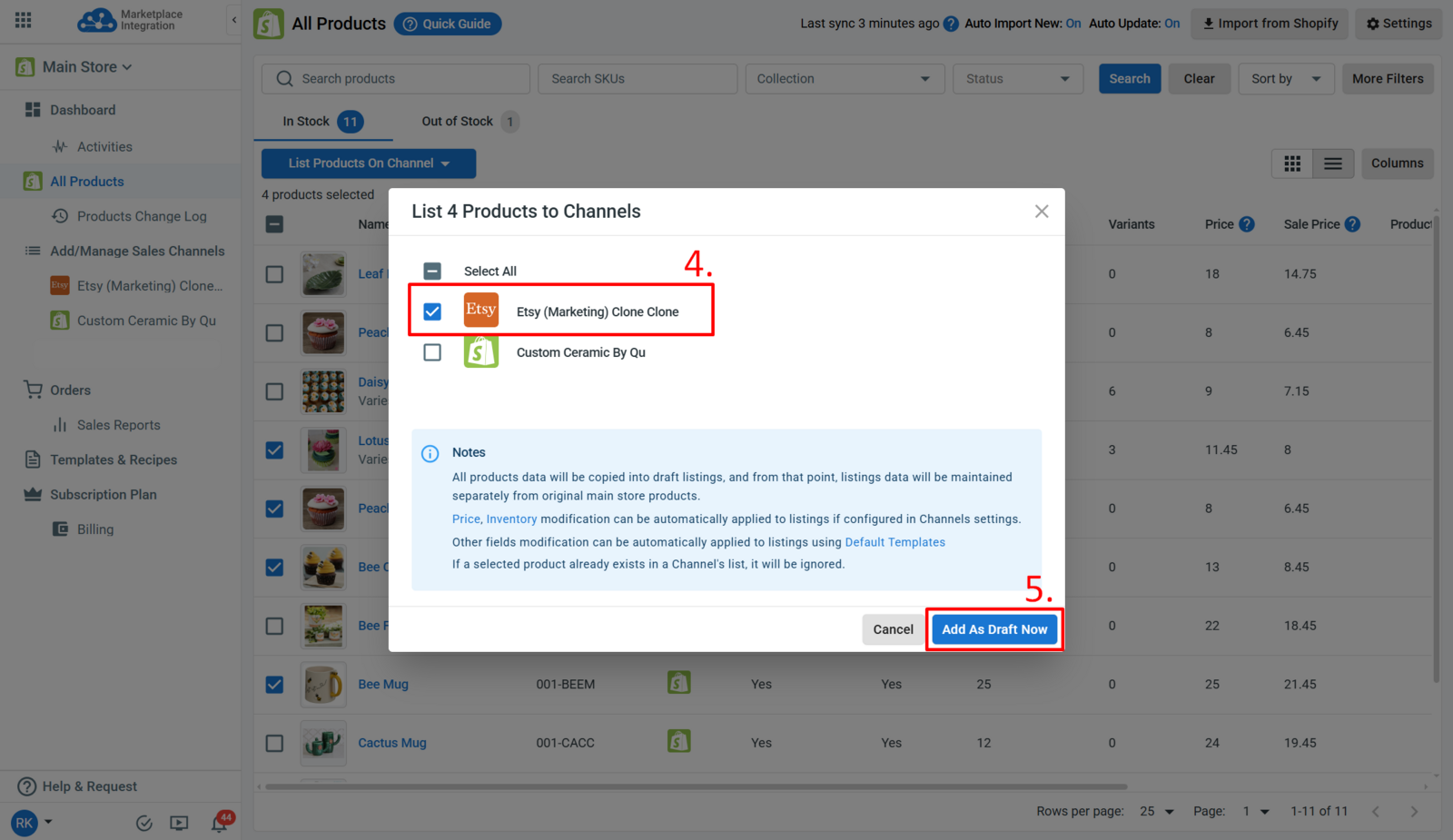
Then, simply check the box next to the desired Channel and click Add As Draft Now.
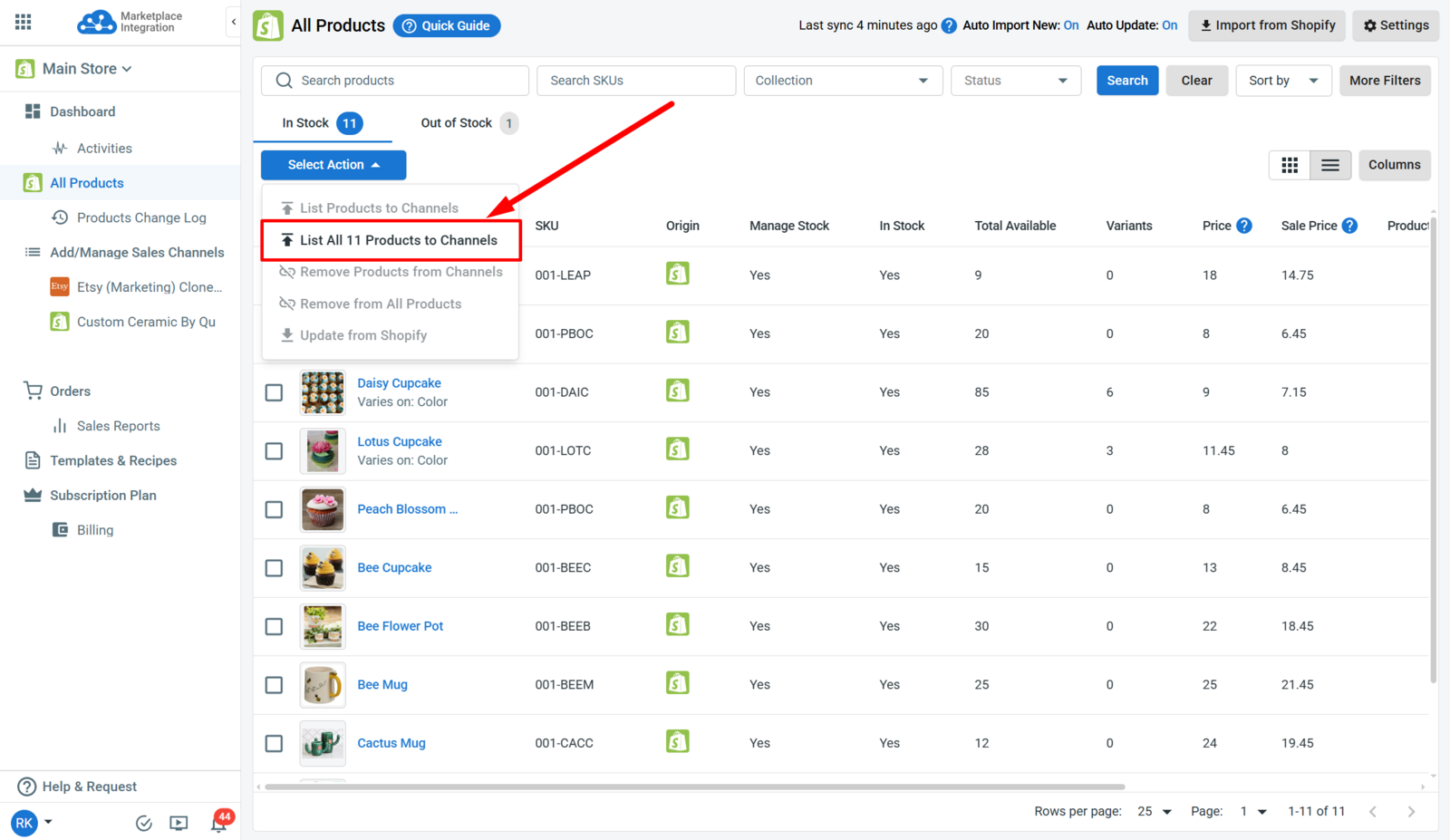
If you have an active subscription with LitCommerce, you can add all items in the All Products tab to the selected Sales Channels using the List All Products To Channel button. This action is only available on certain Sales Channels.
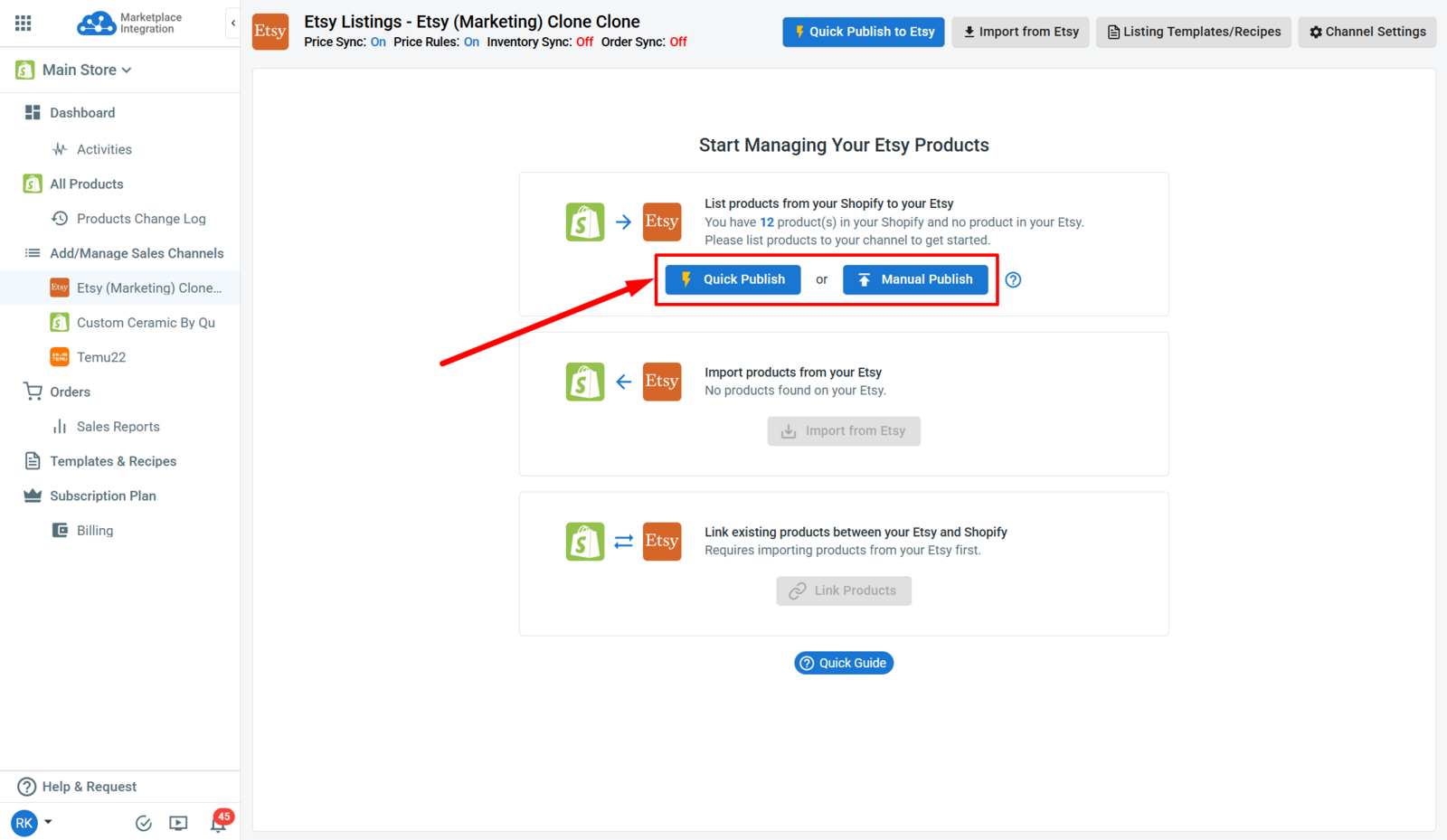
With Etsy, you have the option to choose between Quick Publish and Manual Publish. Feel free to select the one that is suitable for you.
Step 2: Edit draft listings in the Channel in LitCommerce.
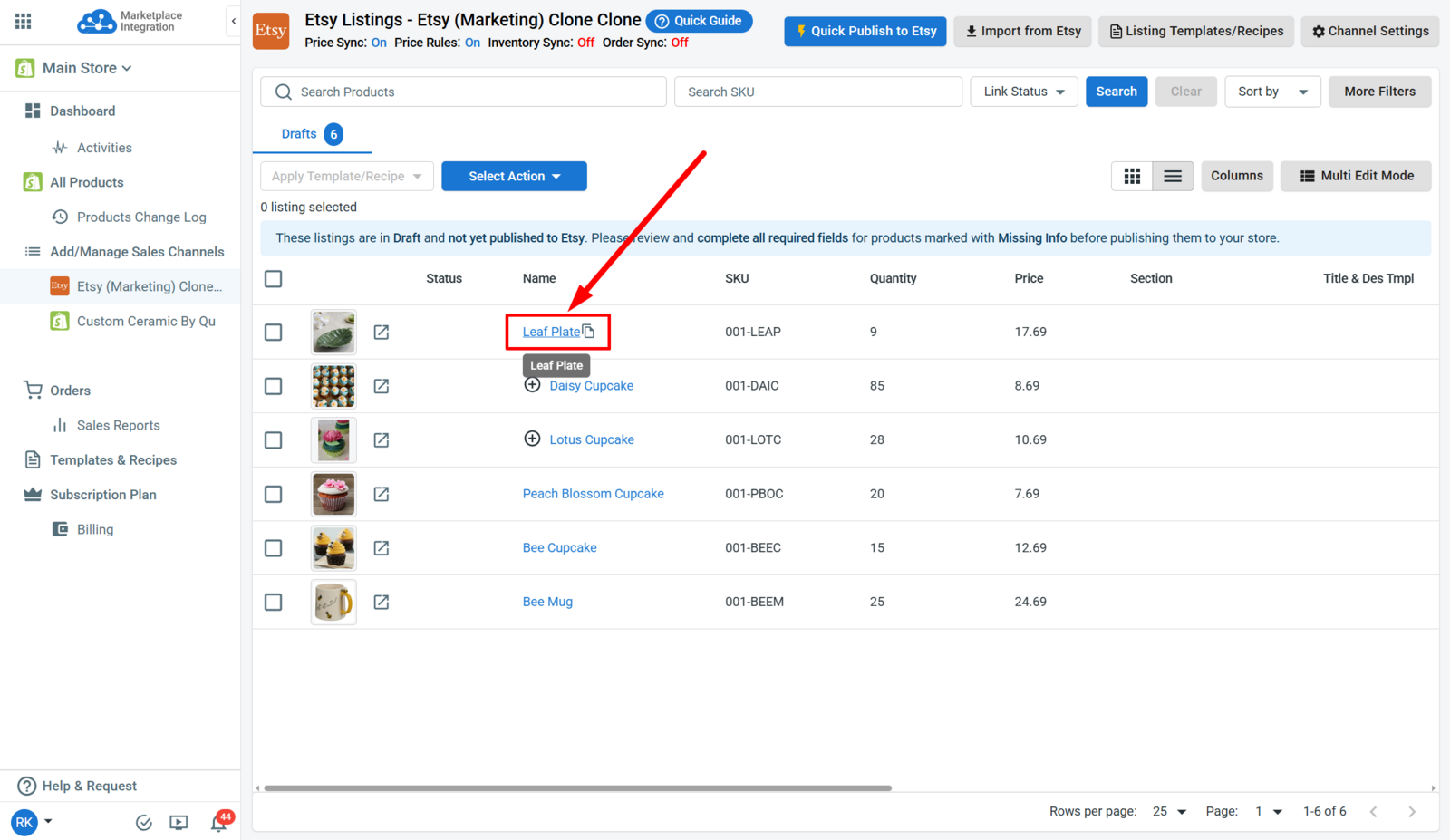
Once your draft listings are ready, click the listing title to access the Listing Page.
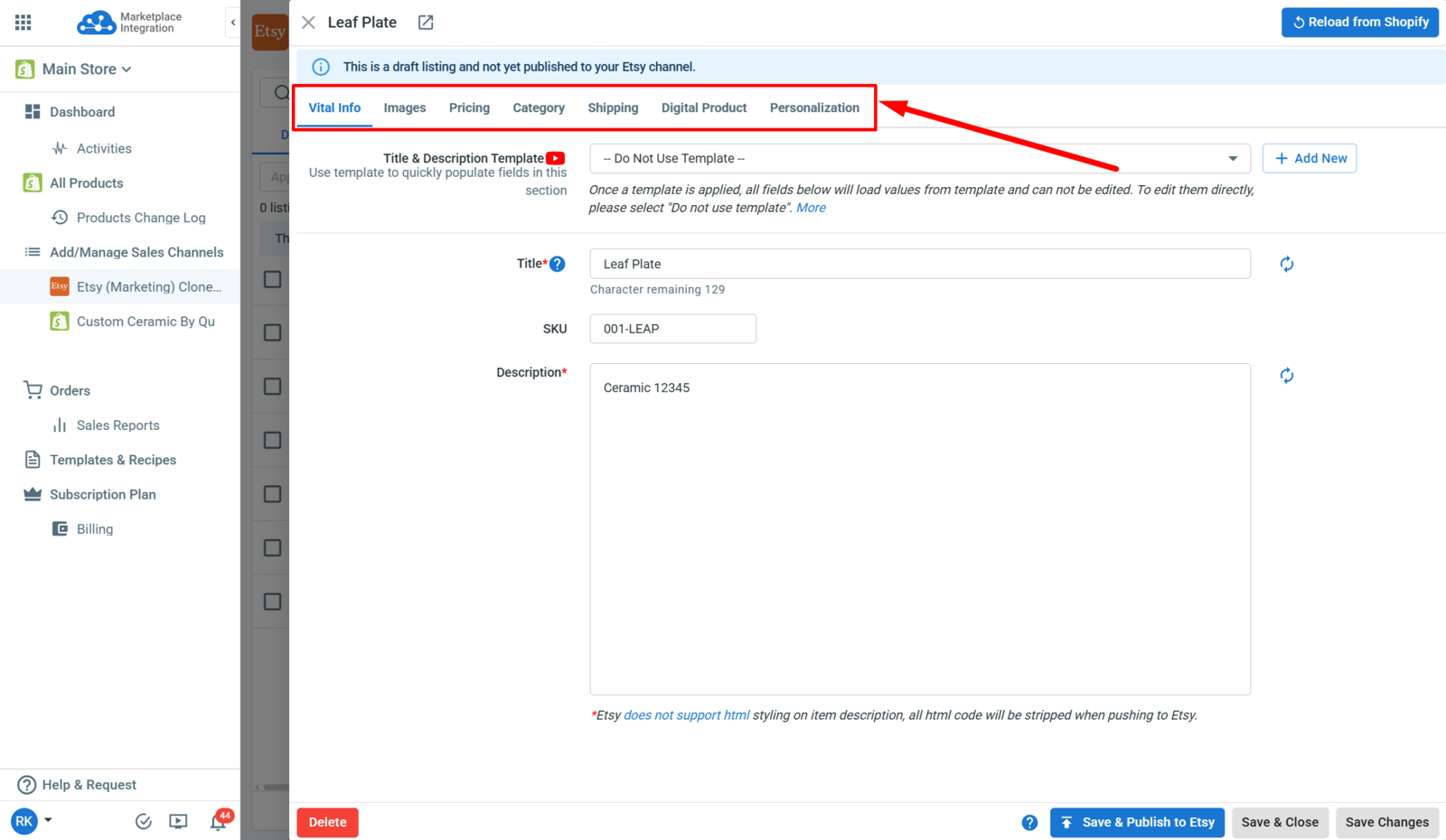
This page organizes the listing information into different tabs. Since each marketplace has unique requirements, make sure to fill out all mandatory fields (with red asterisks).
Step 3: Publish draft listings to the Marketplace.
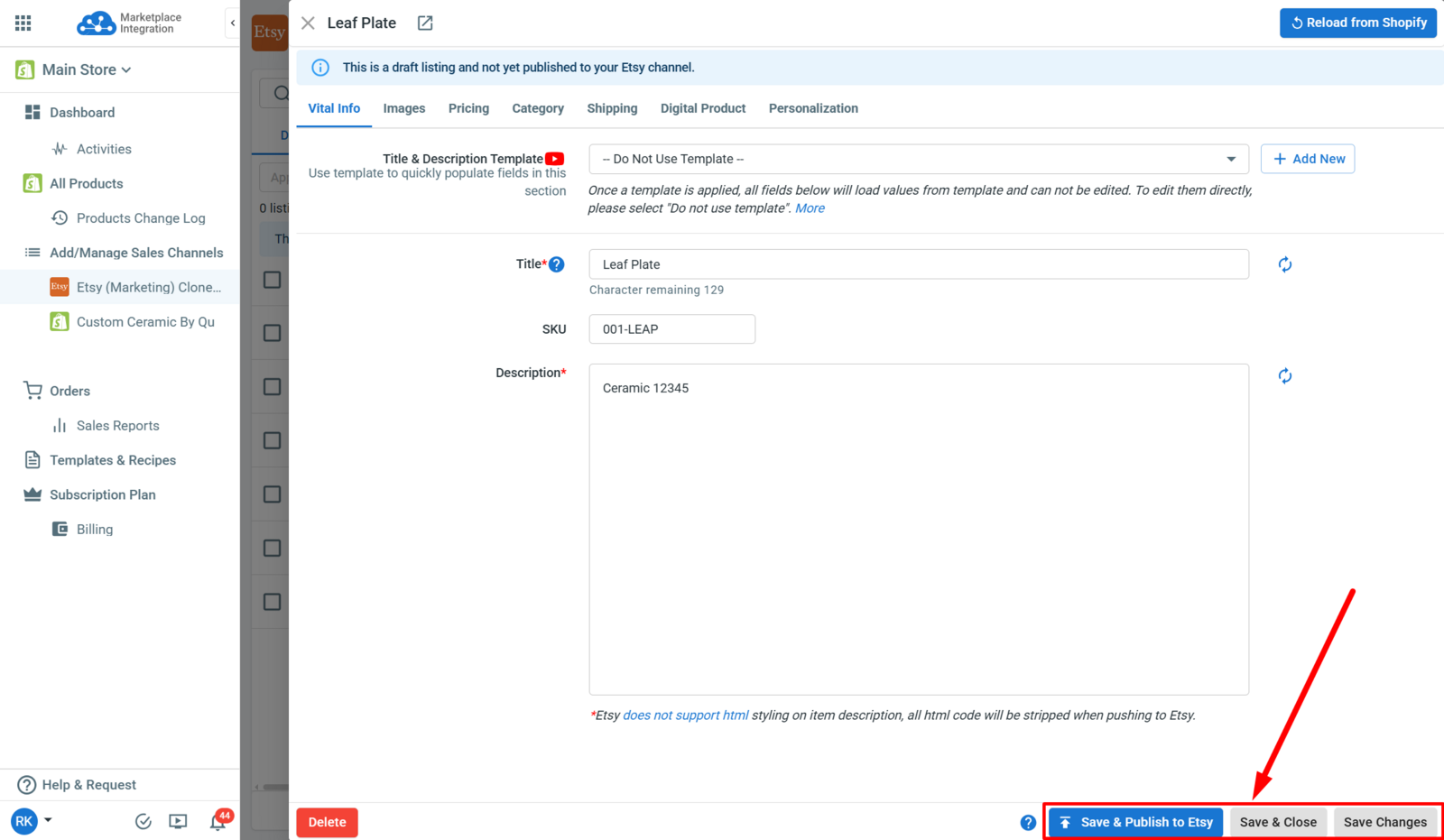
Once you have completed all the required information on the listing page, choose one of the following options:
Save & Publish - Save and publish all your changes immediately on the Marketplace.
Save & Close - Save your changes as a draft and exit the Listing Page.
Save Changes - Save your changes but stay on the page to continue editing.
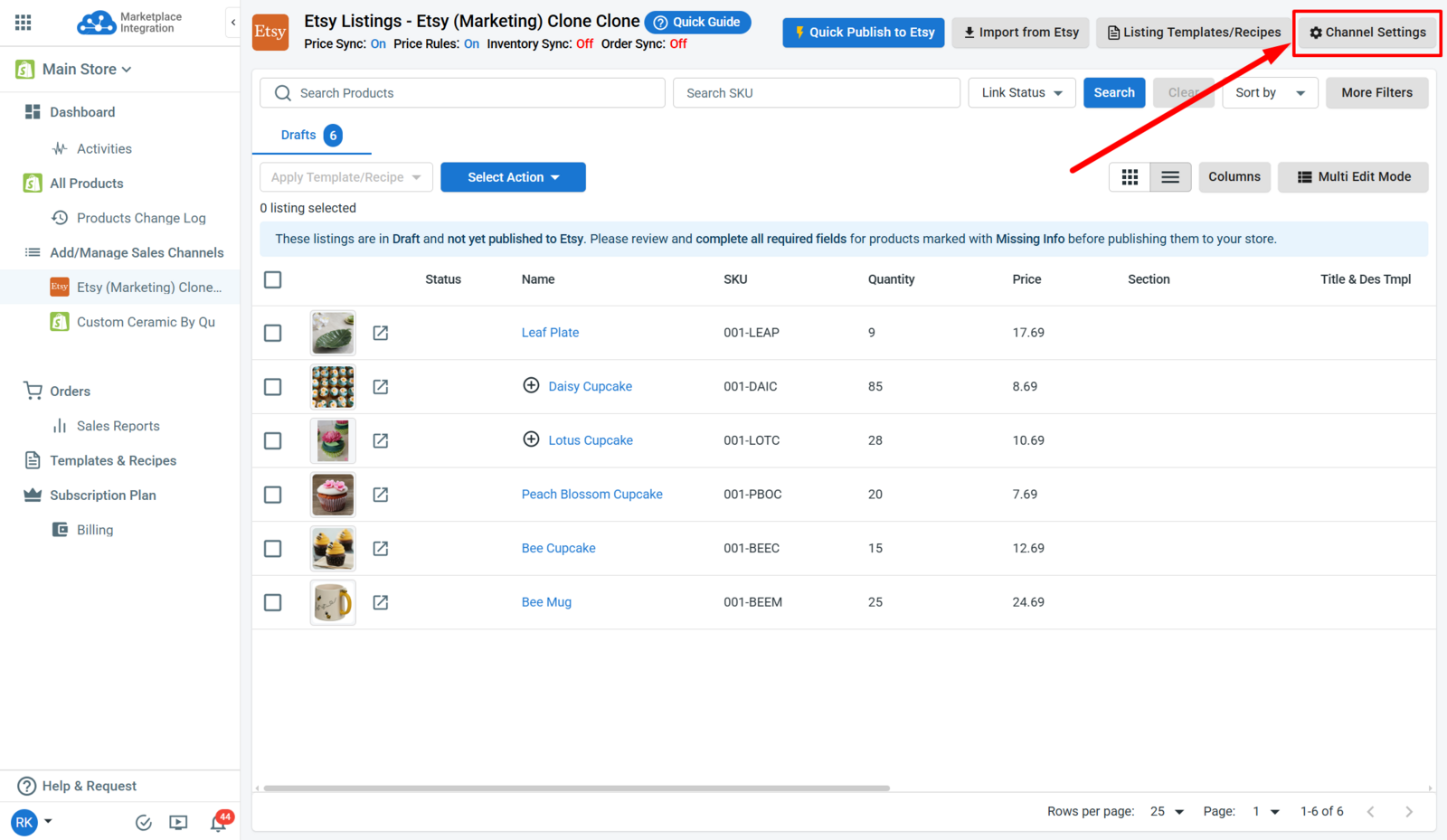
Step 4: Enable Sync Options.
Head to the Channel Settings to enable the syncing options for the channel.
Step 3: Set up Inventory Sync Options
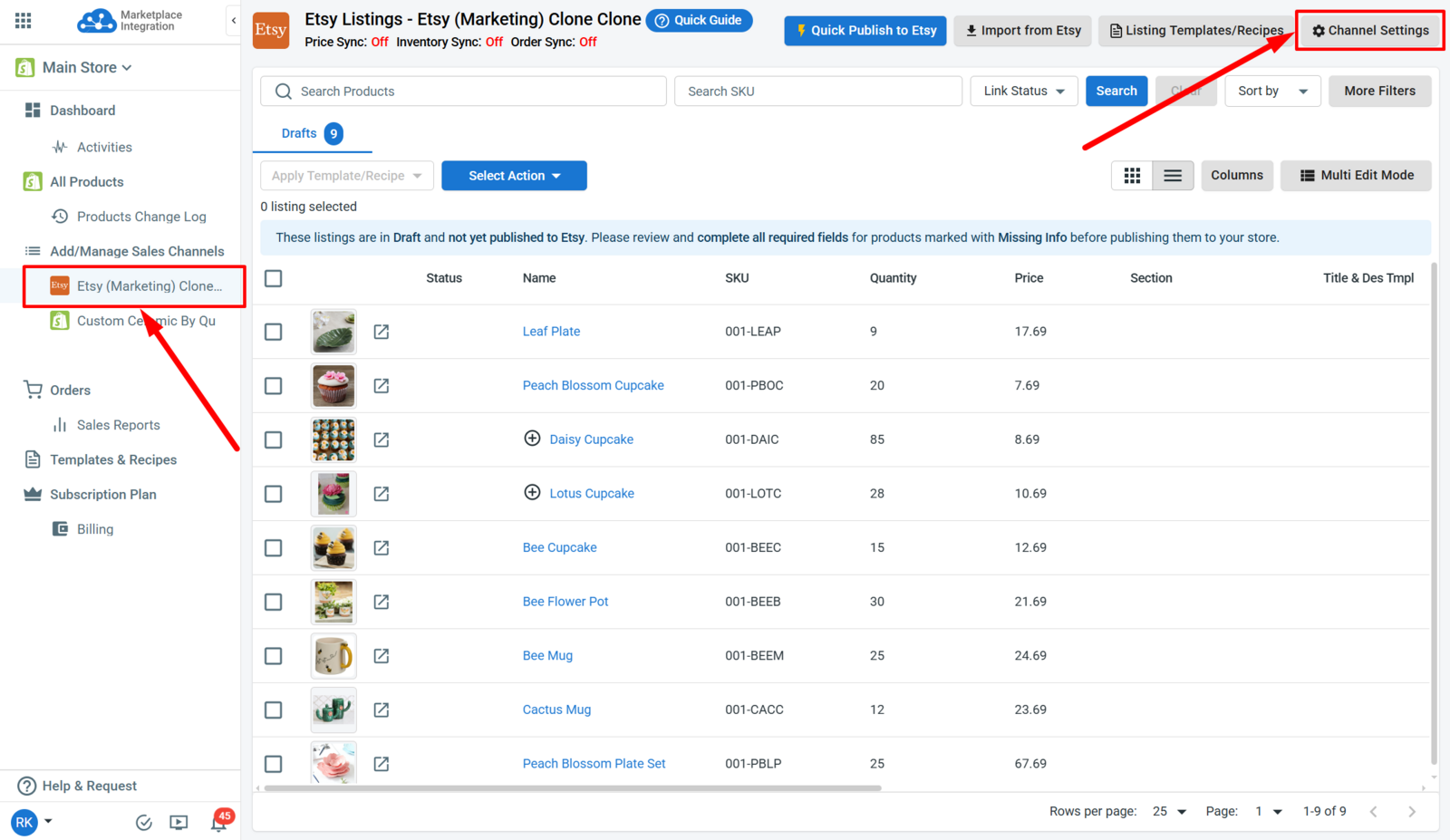
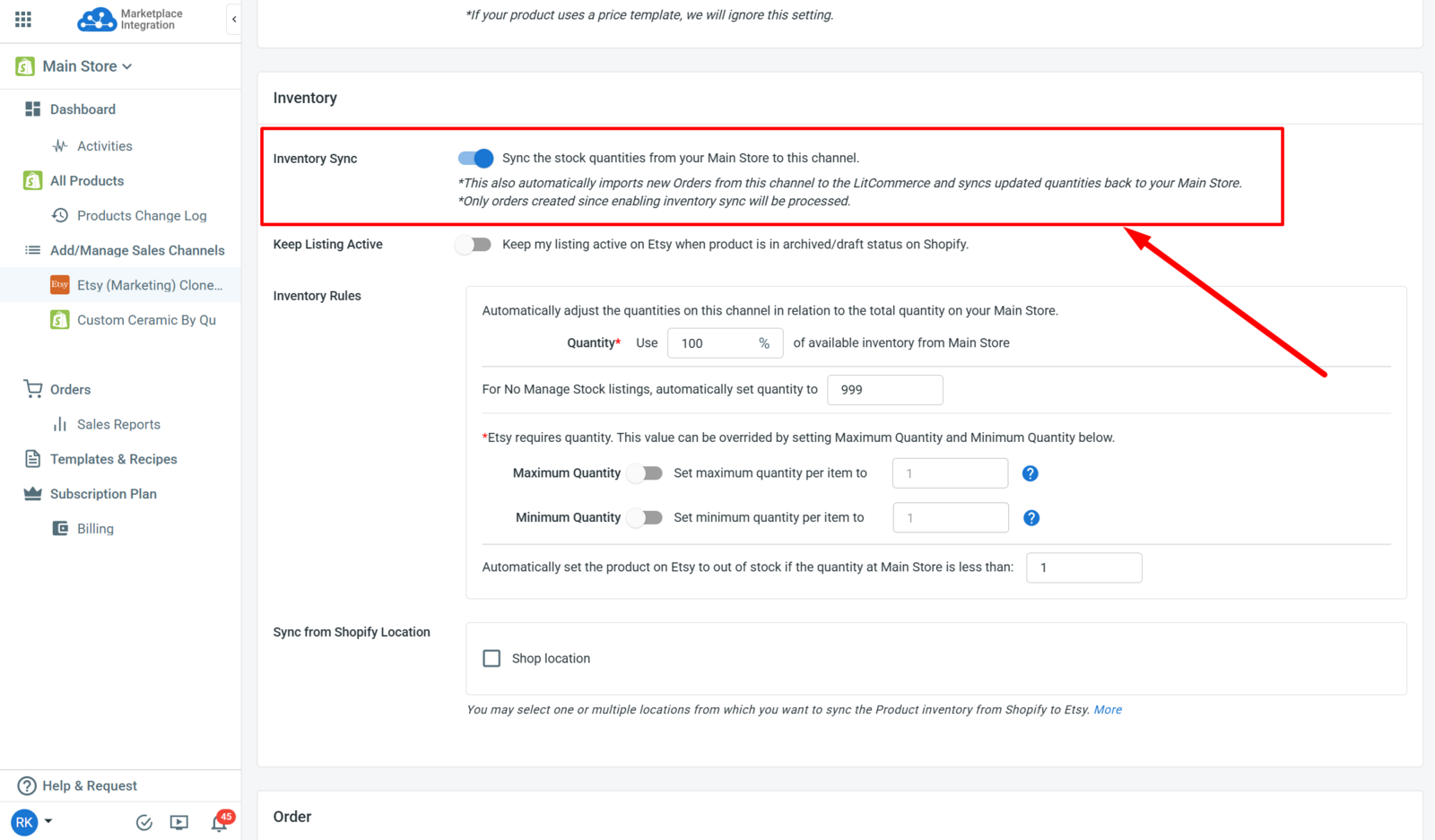
When enabled, the Inventory Sync Options will be applied to all existing Listings in the Channel. If not, they will be applied 1 time when the new Listings are added from the Main Store to the Sales Channel.
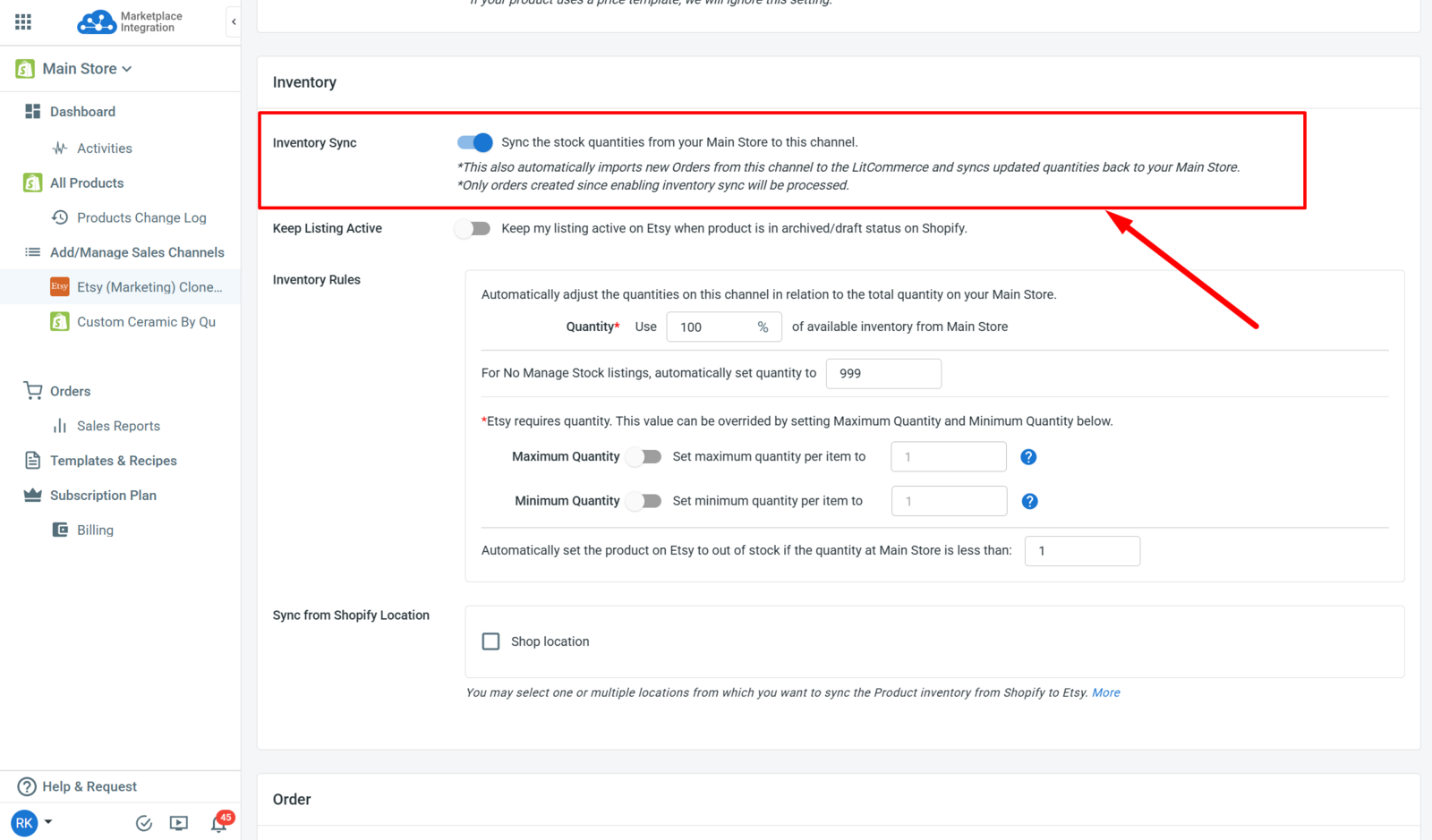
Inventory Sync
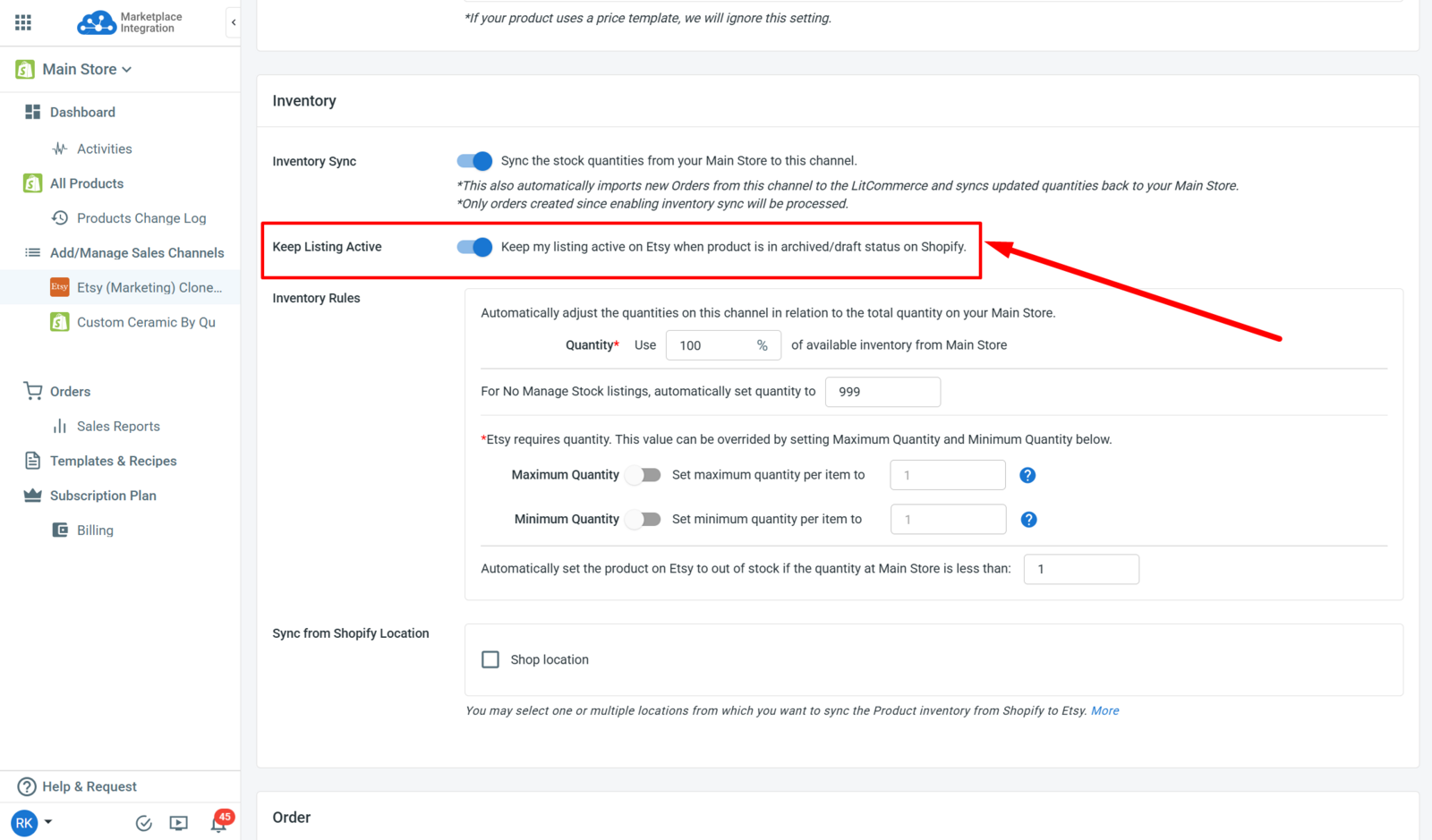
Keep Listing Active
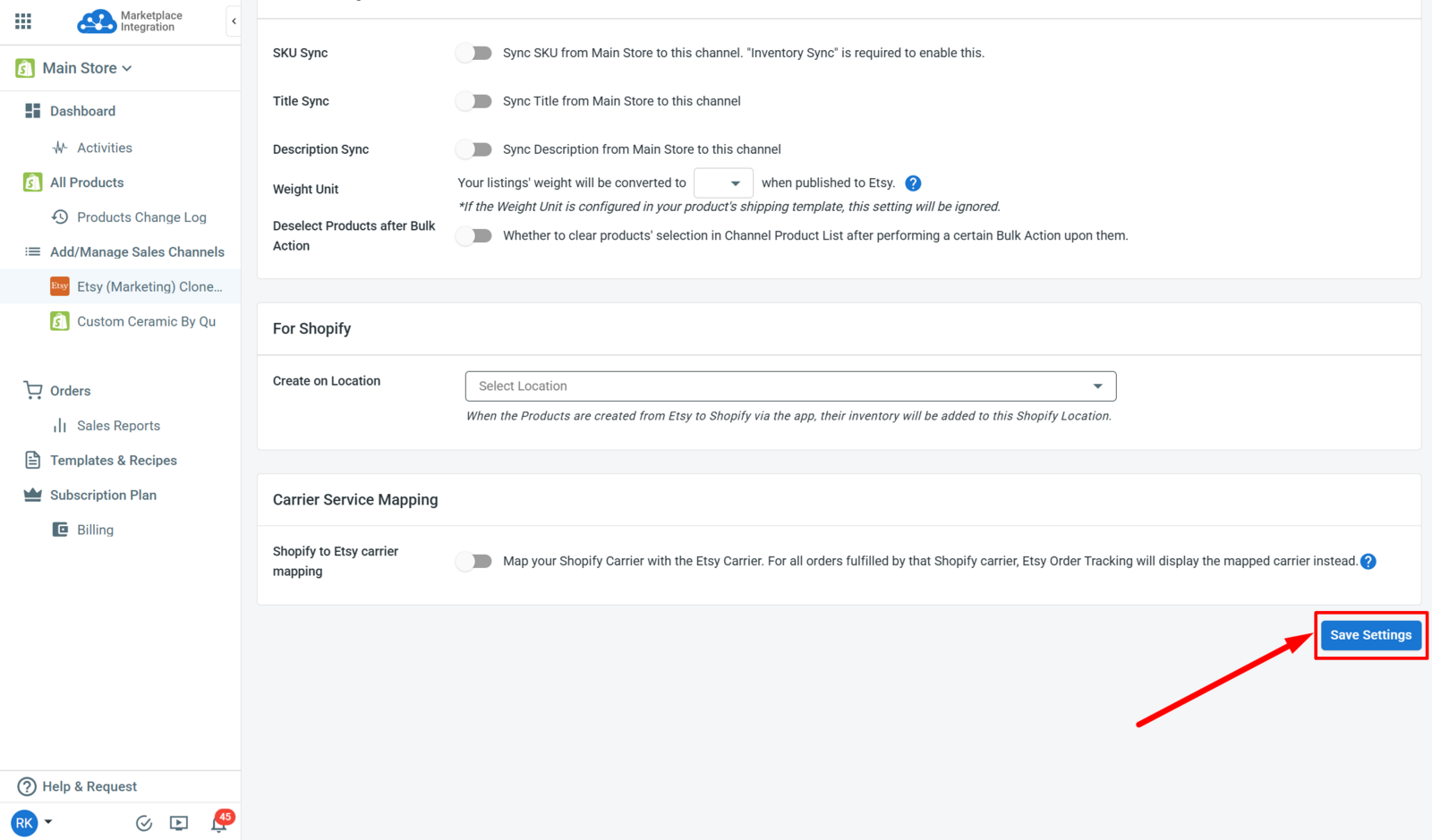
Save settings
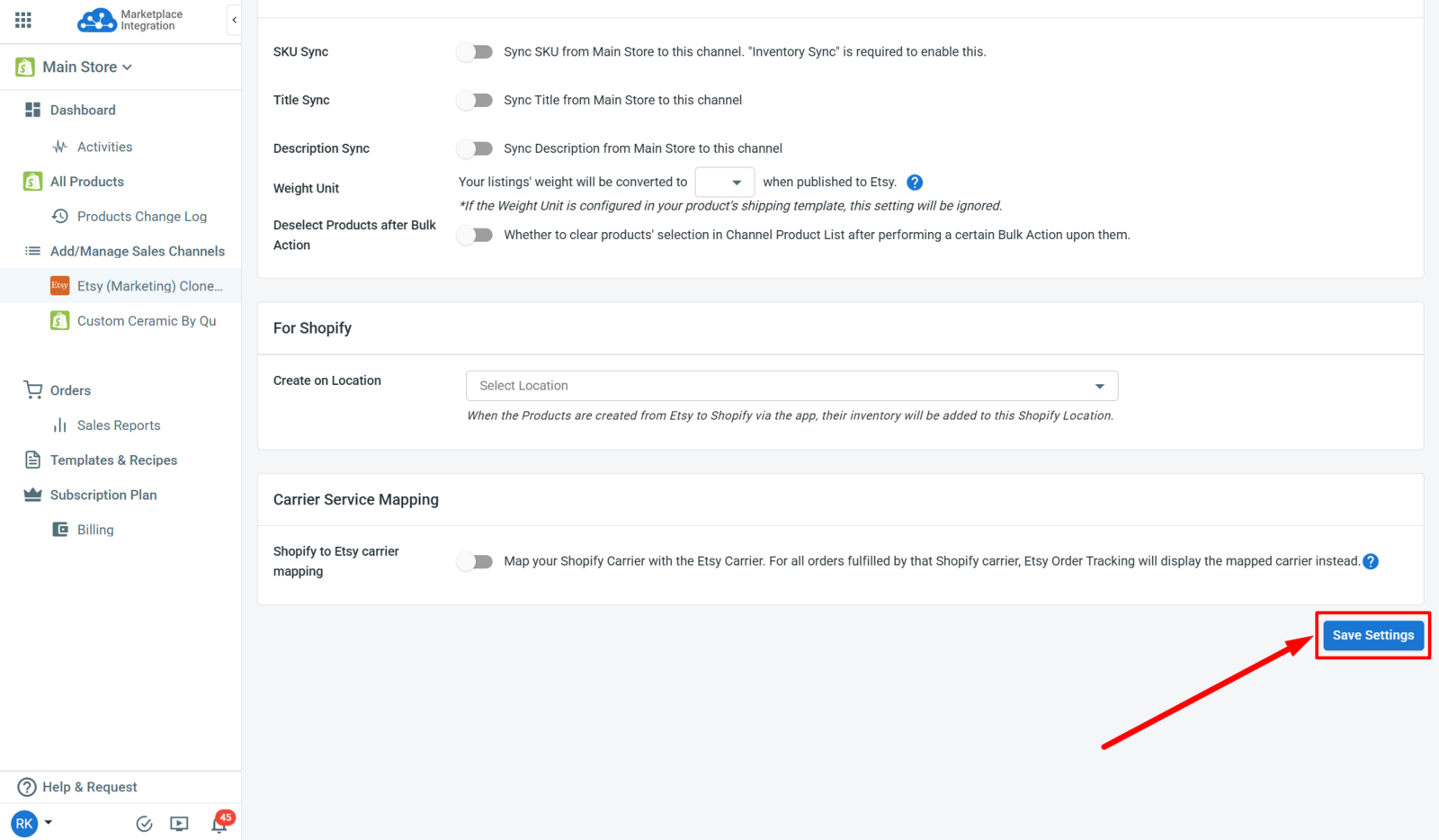
After setting up the Inventory Sync Options, scroll down at the bottom of the page to save the settings.
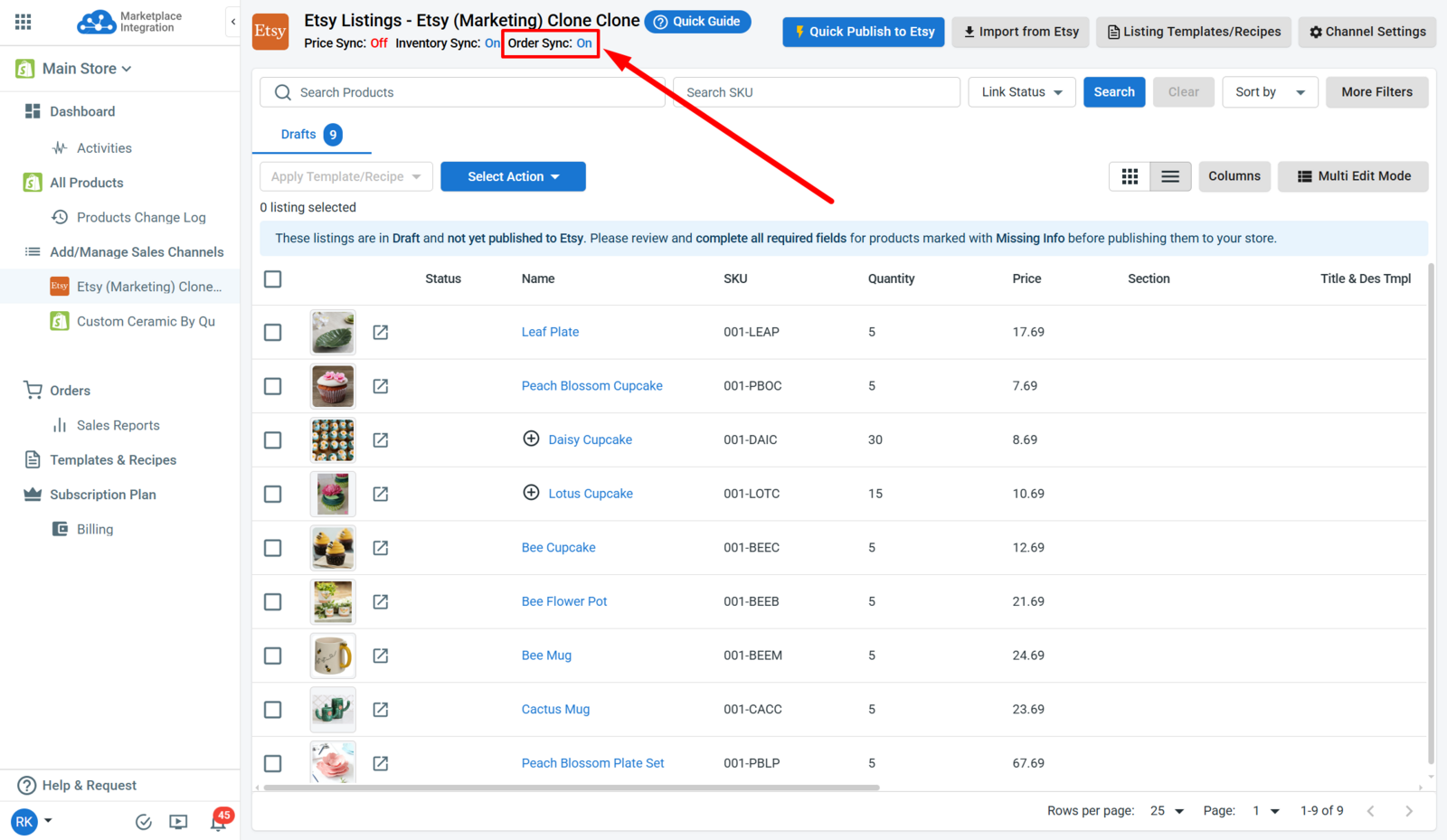
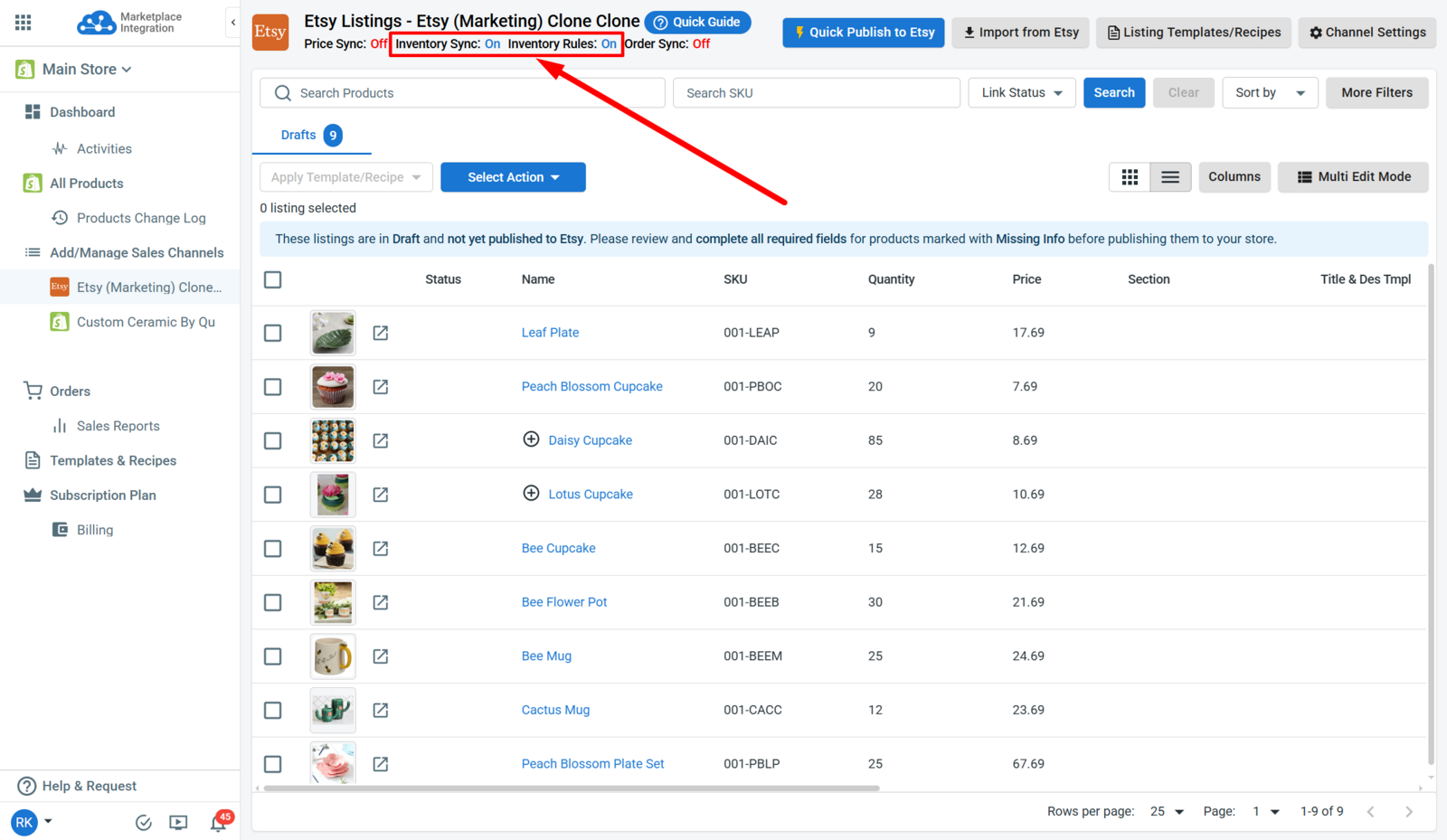
Once the Inventory Sync or Rules are set up, their statuses will be displayed under the Channel Name.
Step 4: Set Up Order Sync Options
Import Orders to Main Store
To import the Channel Orders to your Main Store, first ensure the Inventory Sync is on in the Channel Settings.
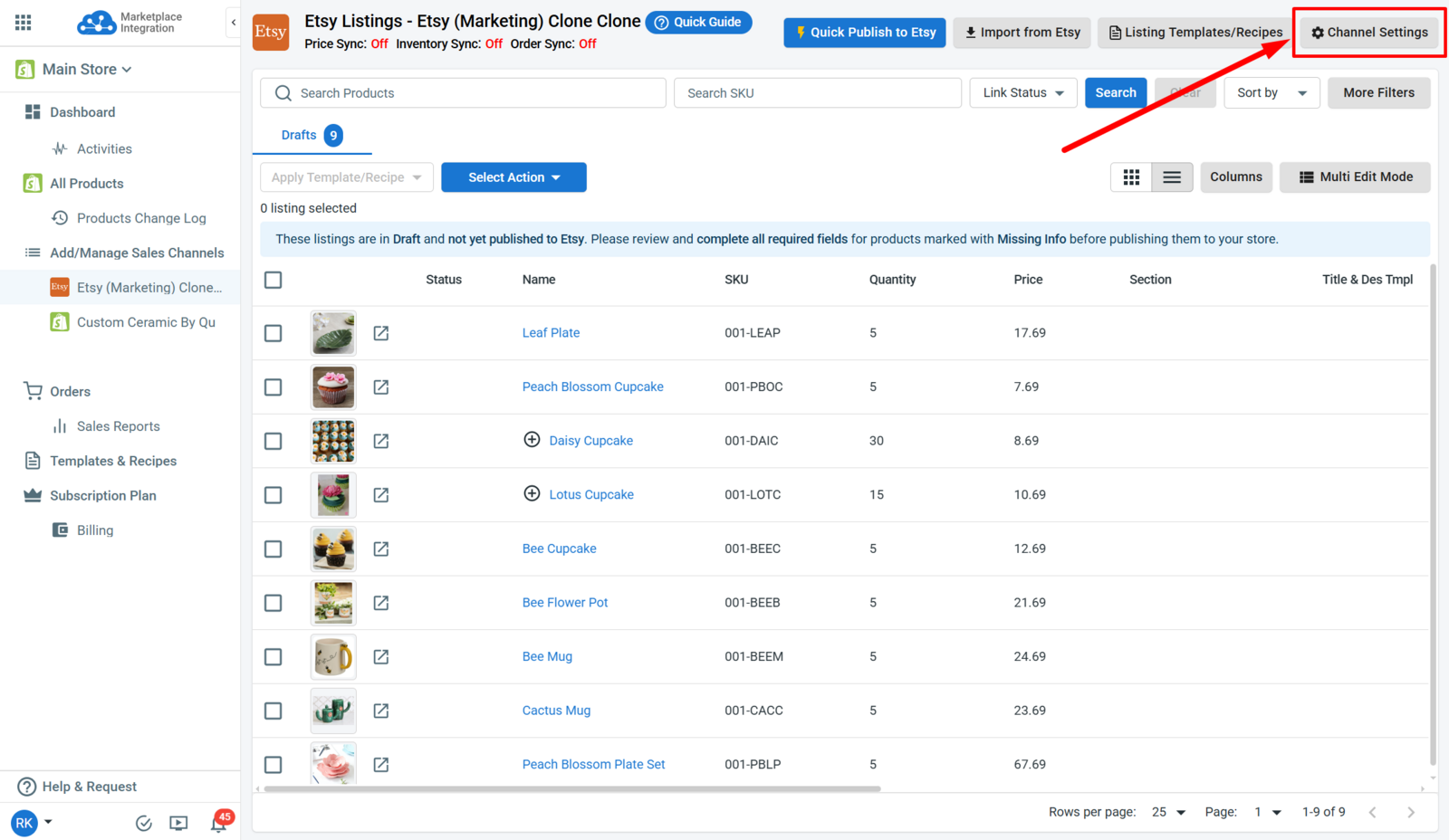
After that, scroll down and toggle on Import Orders to Main Store.
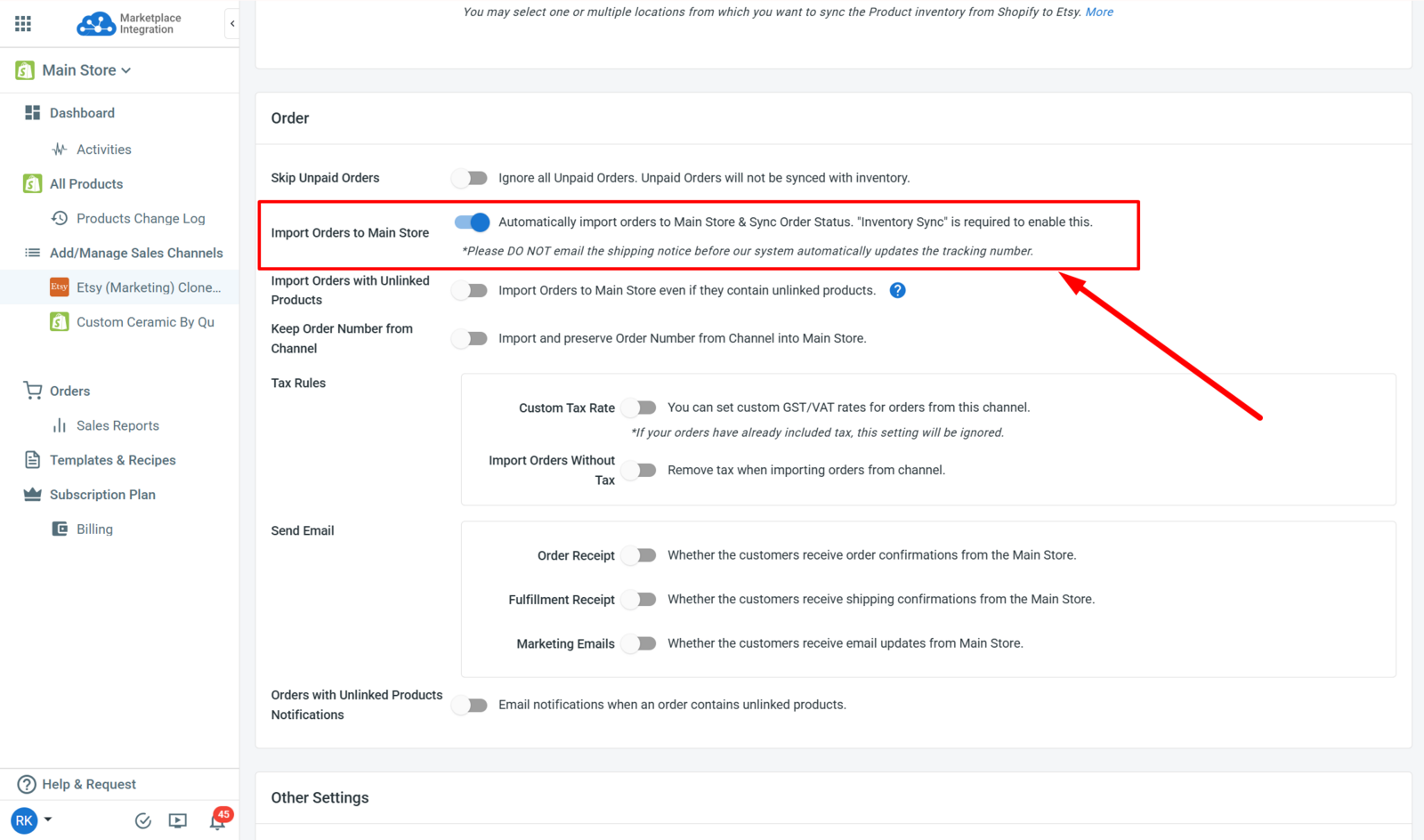
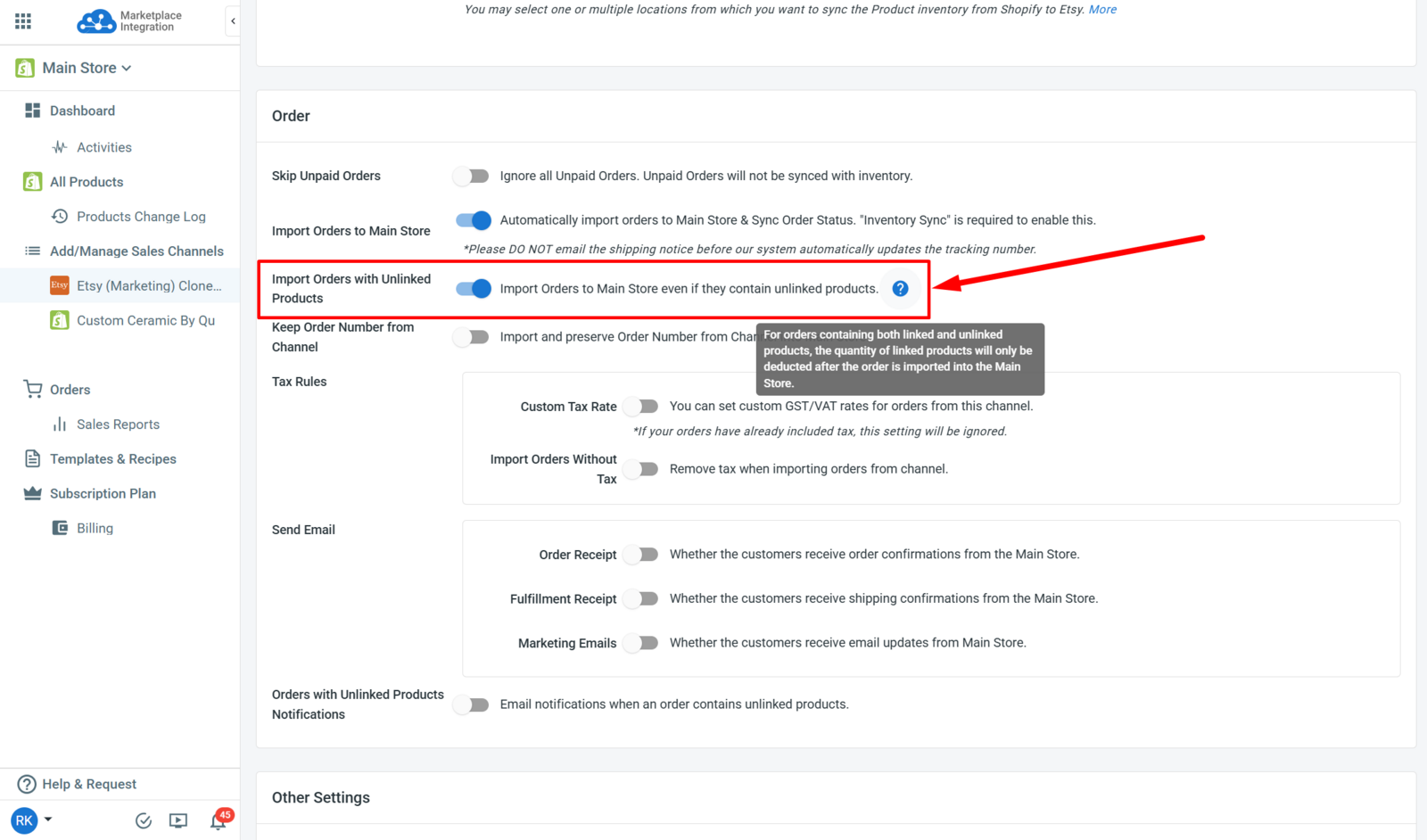
Import Orders with Unlinked Products
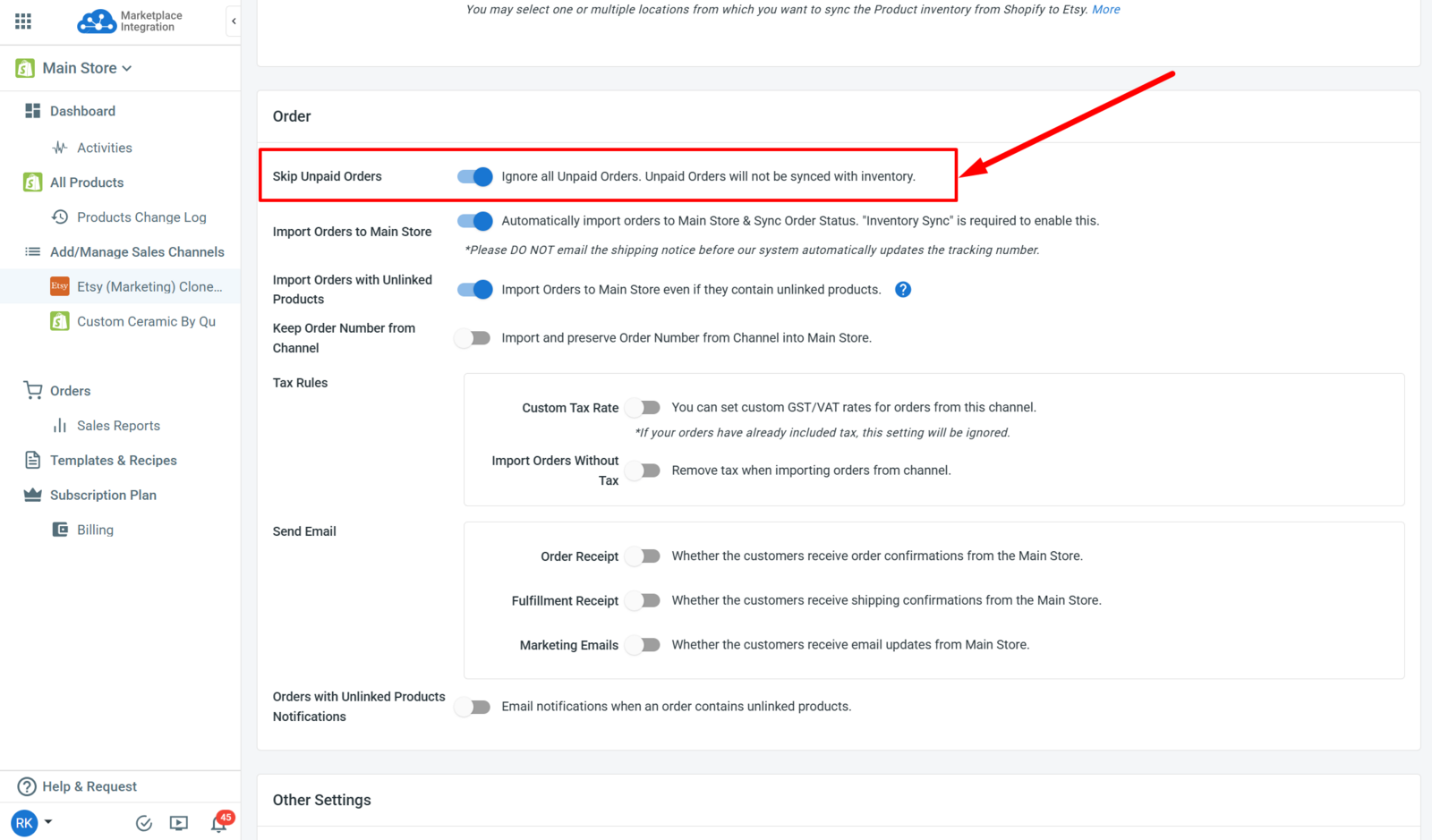
Skip Unpaid Orders
Keep Order Number from Channel
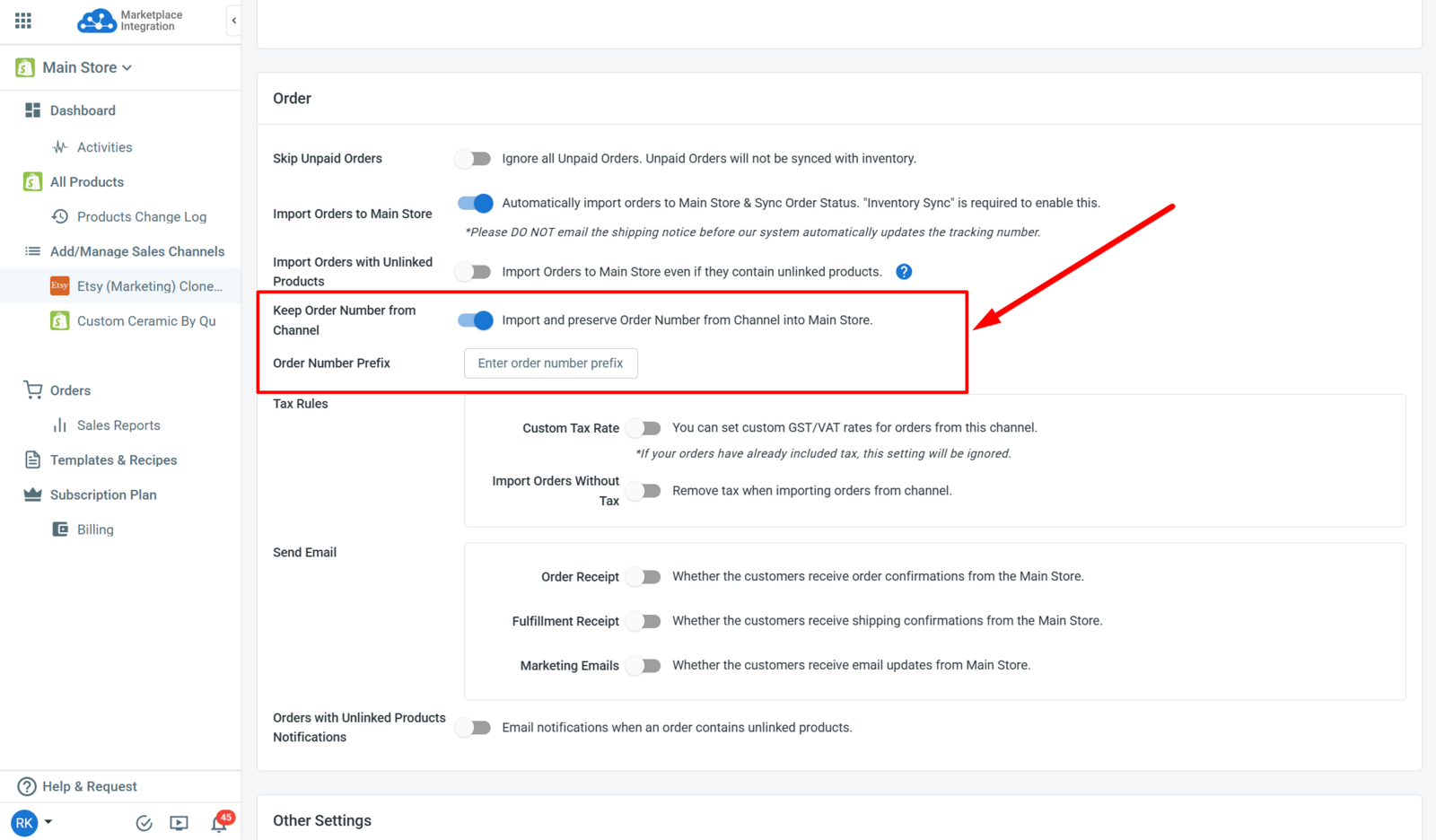
When Channel Orders are imported into the Main Store, the Order Number will adhere to the Main Store’s format. Enable this setting if you wish to retain the original Channel Order Number during the import process.
You can also configure a prefix for the Order Numbers in the Main Store to sort out the Orders imported from a specific Marketplace.
Orders with Unlinked Products Notifications
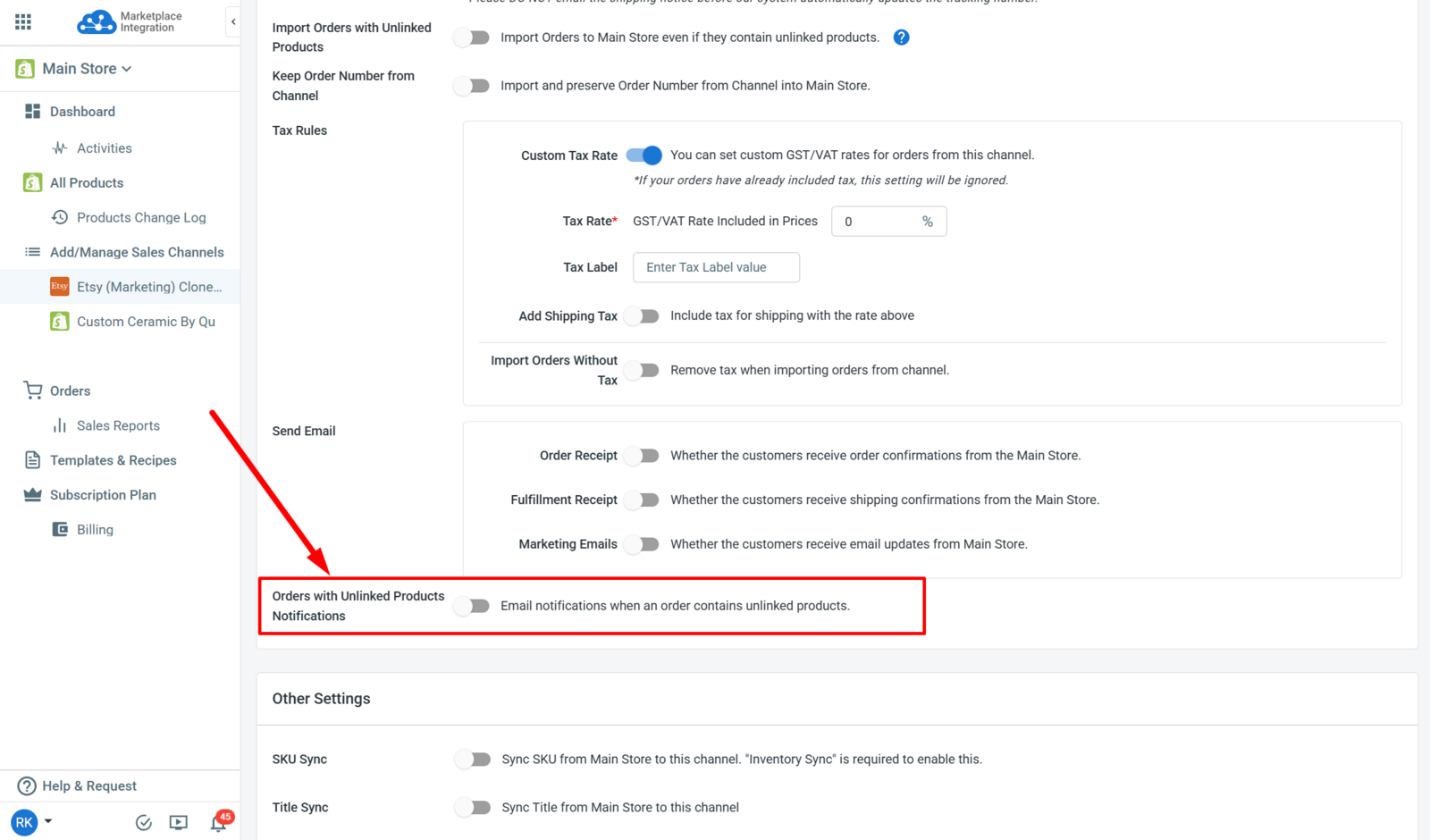
When Channel Orders containing Unlinked Listings are imported, you can enable this setting to receive email notifications. It allows you to review and address them.
Save Settings
Once the Order Sync Options are established, scroll down at the bottom to save the settings.
Once the Order Sync is set up, the status will be displayed under the Channel Name.